
Introduction
Power BI offers two primary ways to get data into reports: Import mode and DirectQuery. Import mode copies data into the Power BI dataset, while DirectQuery leaves the data in the source and issues queries at report runtime. Both approaches have valid uses, but DirectQuery provides substantial advantages for many real‑world scenarios where data volume, freshness, security and system centralisation matter.
Key terms defined
DirectQuery: a connection mode where Power BI sends queries to the underlying data source (for example, SQL Server) whenever a user interacts with a visual. No persistent copy of the full dataset is stored in Power BI.
Import mode: a connection mode where Power BI imports data into a compressed in‑memory cache. Reports run against that cached copy until it is refreshed.
Dataset: the logical collection of tables, relationships and metadata that Power BI uses to build reports. In DirectQuery mode the dataset contains a query layer rather than a complete data copy.
Why choose DirectQuery: practical advantages
DirectQuery is not simply a technical alternative to importing; it enables different operational and architectural choices. The most important advantages are:
- Near real‑time data: Reports show recent changes immediately because queries run against the live source. This is essential for operational dashboards, incident monitoring and scenarios where stale data is risky.
- Unlimited data volume: Importing large transactional tables can be impractical. DirectQuery leverages the database’s storage and indexing, so Power BI is not constrained by local memory limits.
- Centralised security and governance: Row‑level security, auditing and access controls remain with the source database. That reduces the risk of diverging security policies between systems.
- Simplified integration: When multiple applications already use SQL tables and views, DirectQuery lets Power BI consume those canonical structures directly, avoiding ETL duplication.
- Consistent business logic: Putting transformations and calculations into database views or stored procedures ensures the same logic is used by analytics and operational systems.
Concrete examples
Example 1 — Operations dashboard: A logistics team needs a dashboard showing current queue lengths, processing times and exception counts. The underlying tables are large and updated continuously. DirectQuery lets the dashboard query live tables so managers see current status without waiting for scheduled imports.
Example 2 — Regulatory reporting: A finance team must implement strict row‑level security and auditing. Leaving sensitive data in SQL Server and using DirectQuery preserves the database’s access controls and simplifies compliance reviews.
Performance considerations and practical tips
DirectQuery shifts performance responsibility to the source database. That is a benefit when the database is well indexed and tuned, but it requires careful design:
- Use purpose‑built views: Design SQL views that present pre‑joined, aggregated results tailored to the report. This reduces the number and complexity of runtime queries.
- Implement aggregations: For very large datasets, provide small summary tables (or indexed views) that answer common high‑level queries quickly while retaining access to detail when required.
- Index appropriately: Ensure filters and join columns are indexed to support the patterns Power BI generates.
- Limit visual complexity: Each visual can generate multiple queries. Reduce the number of high‑cardinality visuals on a single page to keep response times acceptable.
- Use query caching and gateway: Where appropriate, enable caching features in the on‑premises data gateway and configure timeouts to suit business requirements.
Trade‑offs and when not to use DirectQuery
DirectQuery is powerful but not always the right choice. Consider import mode or a composite architecture when:
- Your reports rely on complex DAX or transformations that are more efficient in Power BI’s in‑memory engine.
- Query latency is critical and the underlying database cannot deliver consistently low response times under user concurrency.
- You need fast, offline access to a static snapshot of the data for ad‑hoc analysis.
Hybrid approaches exist: composite models let you mix imported aggregated tables with DirectQuery access to detail, achieving the best of both worlds — fast summary visuals with live drill‑through to current detail.
When DirectQuery is the appropriate choice and who should consider it
DirectQuery is appropriate when organisations need live or near‑live reporting from large operational datasets and want to preserve centralised security and business logic. Typical adopters include:
- Operations and service teams that monitor current activity.
- Finance or compliance teams that must enforce database‑level access controls and auditing.
- Organisations with established on‑premises SQL Server estates that prefer to keep primary data inside the corporate perimeter.
Teams that already model data in SQL using views or materialised summaries will find DirectQuery particularly effective because it allows them to expose that curated layer directly to Power BI without duplicating effort.
How SQList and related approaches help
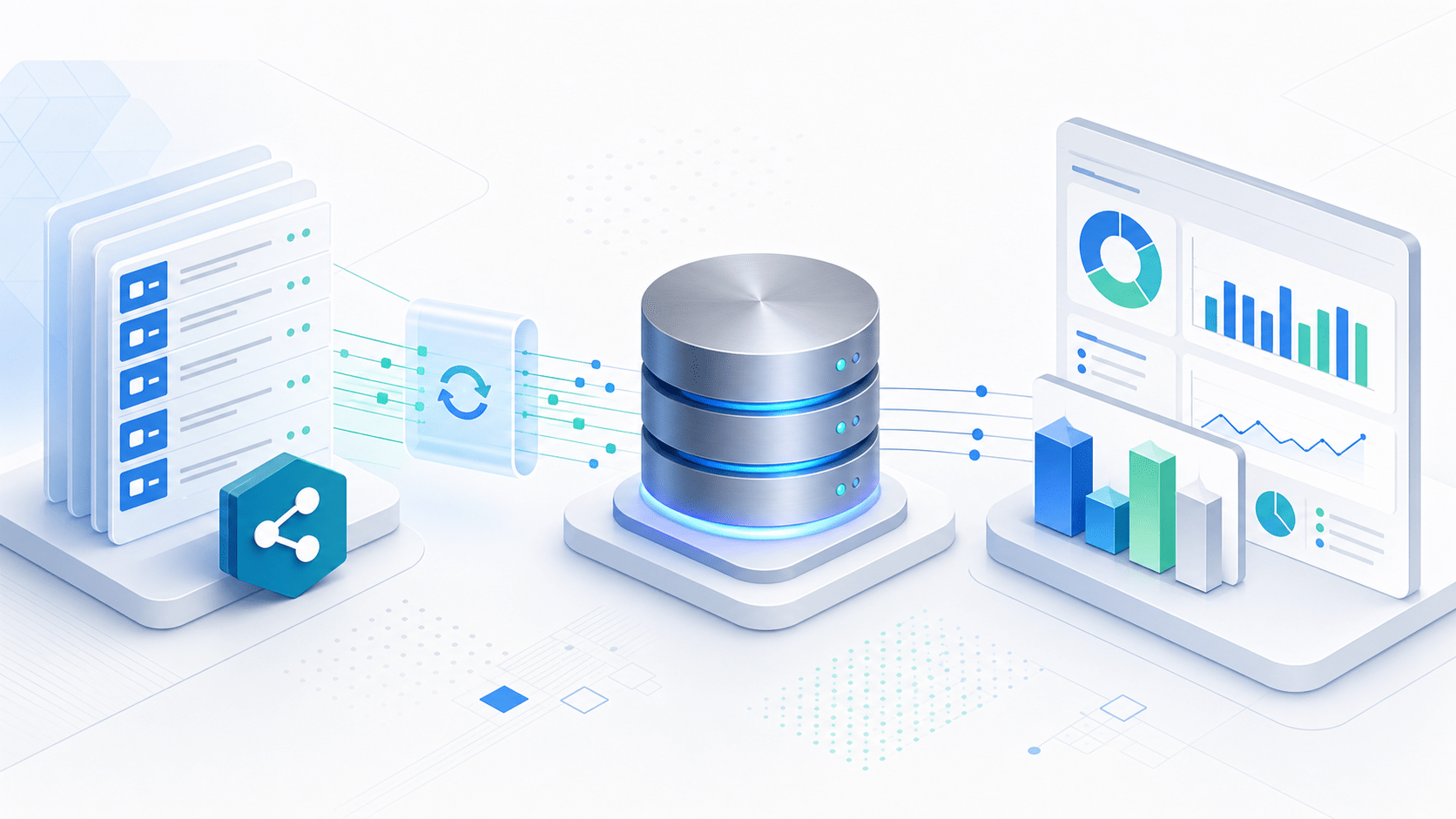
Tools that synchronise or present SharePoint data in SQL Server unlock DirectQuery advantages for organisations that use SharePoint as a data source. By maintaining SQL tables and views that mirror SharePoint lists, you gain the scale and governance of SQL while keeping content authored in SharePoint.
For a practical look at bringing SharePoint data into SQL Server, see Why use SQList: practical advantages of bringing SharePoint list data into SQL Server. For examples of live reporting with Power BI, read Unlock Live Reporting with SharePoint and Power BI Using SQList. To understand where such tools sit in a broader architecture, review Where SQList Fits in the Modern Data Stack.
Practical rollout checklist
- Identify the reports that require live data and the expected concurrency.
- Profile query patterns to design efficient views and indexes.
- Start with a small pilot for one or two dashboards and measure end‑to‑end latency under realistic load.
- Implement monitoring and tune the database iteratively; include gateway and network considerations if data is on‑premises.
- Document governance: who owns the views, access controls and refresh policies.
Following this checklist helps ensure DirectQuery delivers the intended value without unpleasant surprises.
With SQList you can run Power B report in direct query directly to SQL tables and views.
#powerbi #directquery #sqllist #sharepoint #dataintegration #businessintelligence