
Why move off InfoPath now
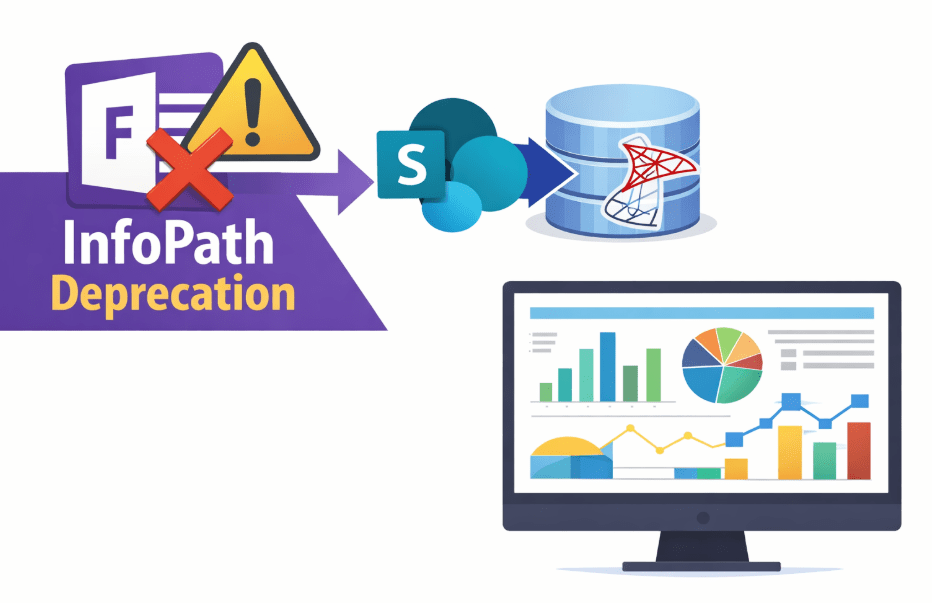
InfoPath is a legacy form technology for SharePoint that Microsoft has announced will reach end of support. Continued reliance on InfoPath (or other discontinued form solutions) is a long‑term operational and security risk: unsupported software no longer receives security fixes, it becomes harder to run reliably in modern SharePoint environments, and it increases the chance of data access problems during audits or migrations. For organisations still using InfoPath, the near‑term decision is not whether to modernise but how to do it in a controlled, low‑risk way. For context on timelines and the implications, see the AxioWorks post “InfoPath is Ending: Move Your Forms Data into SharePoint Lists and SQL Server”.
Key terms
Define the technical terms you will see throughout this article:
- InfoPath: a Microsoft forms designer and runtime formerly tightly integrated with SharePoint, used to capture structured form data.
- SharePoint list: a SharePoint object that stores structured rows of data (items) and fields (columns); commonly used to back modern list forms.
- Lift‑and‑shift: migrating an existing form or its data with minimal functional change, preserving behaviour and structure.
- Redesign: reimplementing form logic and UI to use modern SharePoint list forms, Power Apps, or other contemporary tools, often with UX and data model changes.
- Automated migration: using tools or scripts to convert form definitions and extract data into target storage at scale.
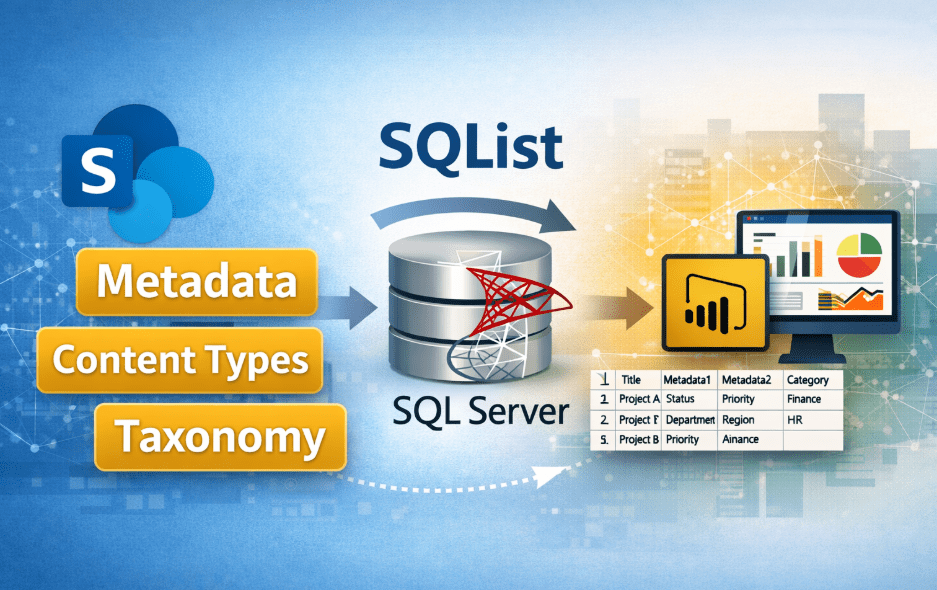
- Replication: creating a secondary copy of form data in a relational store for reporting or integration; SQList is one pragmatic option for this approach.
Why InfoPath and other legacy forms are a long‑term risk
Beyond the lack of support, legacy forms commonly cause these recurring problems:
- Fragile integration with modern authentication and APIs, which can break as Microsoft moves to newer authentication models.
- Limited reporting capability: form data stored in non‑relational formats is hard to include in enterprise reporting without transformation. See “Why SharePoint Is Not a Reporting Database — And What to Do Instead” for an explanation of these trade‑offs.
- Maintainability: few administrators today know the internal quirks of InfoPath, increasing dependency on scarce specialists.
Typical blockers when migrating old forms
Migrations fail or stall for predictable reasons:
- Complex logic and conditional rules embedded in the form that have no one‑to‑one equivalent in modern form tools.
- Data stored inside XML blobs or attachments rather than discrete columns, making extraction and mapping laborious.
- Dependence on obsolete server features such as InfoPath Forms Services or legacy authentication flows.
- User resistance driven by familiarity with the old form layout and behaviours.
Recognising these blockers early shapes the migration strategy and reduces surprises during execution.
Lift‑and‑shift versus redesign: trade‑offs
Two broad approaches are common.
Lift‑and‑shift
Lift‑and‑shift aims to preserve existing form behaviour and data structures while moving the runtime or data store. It is quicker and reduces immediate user retraining, but it can perpetuate technical debt. Lift‑and‑shift is appropriate when the business needs continuity and the forms are stable with limited future change.
Redesign
Redesign rethinks the form experience for modern platforms (SharePoint list forms, Power Apps, or custom SPFx components). This typically improves usability, validation and maintainability, and aligns data with reporting needs, but it costs more up front and requires user change management.
Choosing between the two depends on business priorities: speed and continuity, or long‑term agility and improved analytics.
Automating migration versus manual rebuilding
Automation reduces effort for large inventories of forms but has limits. Automated migration tools can:
- Extract XML data and map fields to SharePoint list columns or relational tables.
- Generate basic list forms or skeleton Power Apps as starting points for manual refinement.
However, automation struggles with complex conditional logic, custom code, and UX nuances. A hybrid approach often works best: automate extraction and bulk mapping of data, then manually rebuild a representative sample of high‑value forms to define standards and patterns.
Practical example: a pragmatic migration path
Here is a condensed, practical plan for an organisation with 200 InfoPath forms of mixed complexity:
- Inventory and classify forms by complexity, data criticality and usage.
- For low‑complexity forms (30–40%): use automated extraction to move data into SharePoint lists, then enable modern list forms with simple column validation.
- For medium complexity (40–50%): replicate form data into a relational store for reporting and build Power Apps or customised list forms for UX improvements. Consider replication tools such as SQList to unlock metadata and provide a reliable reporting copy; see “Unlocking SharePoint Metadata for Reliable Reporting with SQList” for how that supports analytics.
- For high complexity (10–20%): redesign. Rebuild with a carefully scoped modern platform and include stakeholder sign‑off to avoid scope creep.
- Run parallel operations for a transition period: keep legacy forms available in read‑only mode while users validate migrated data and new forms.
Reducing disruption for users
Successful modernisation minimises user disruption:
- Communicate early and provide completed examples of the new forms to set expectations.
- Retain original form layouts where possible during lift‑and‑shift to shorten the learning curve.
- Use staged rollouts and pilot groups to gather feedback and iterate quickly.
- Preserve historical data accessibility—migrated data must remain searchable and auditable; consider exporting or replicating historical form data to SQL Server for analytics, as discussed in “Exporting SharePoint data to SQL Server: options, trade‑offs and when to choose each approach”.
When this approach is appropriate and who it’s intended for
This practical path targets IT teams, SharePoint administrators, BI/analytics leads and project managers responsible for form modernisation. The approach suits organisations that:
- Require a managed, low‑risk transition off InfoPath within a constrained timeframe.
- Need to retain business rules and historical data while improving reporting and maintainability.
- Have a mix of simple and complex forms and want a repeatable pattern for future migrations.
Organisations without internal development capacity should focus first on automated extraction and replication so reporting and compliance can continue while a small set of critical forms are redesigned.
Final practical considerations
Don’t treat form modernisation as an isolated UI project. Consider data models, reporting needs and integration with line‑of‑business systems. SharePoint forms are part of a wider ecosystem; see “Why Most SharePoint Forms Fail — And How to Fix Them Without Code” for common pitfalls to avoid when rebuilding forms without engineering debt.
Finally, ensure modern authentication and API compatibility throughout the migration: many legacy integrations assume deprecated authentication methods that must be replaced before cutover. For authentication guidance relevant to integrations, consult AxioWorks’ article on modernising authentication for SharePoint Online.
Modernising InfoPath forms is both achievable and valuable. Using a combination of automated extraction, selective redesign and replication into a relational store creates a practical balance between speed, user continuity and long‑term maintainability.
Relevant resources: InfoPath is Ending: Move Your Forms Data into SharePoint Lists and SQL Server, Unlocking SharePoint Metadata for Reliable Reporting with SQList, Why Most SharePoint Forms Fail — And How to Fix Them Without Code, Exporting SharePoint data to SQL Server: options, trade‑offs and when to choose each approach.
For teams looking to replicate form data into a reliable queryable store for reporting, consider SQList as a pragmatic option: SQList.
#sharepoint #infopath #forms #migration #sqlist #dataintegration