
Introduction
Many teams use SharePoint lists as a convenient store for business data. SharePoint list: a structured collection in SharePoint used to capture items or records with columns and metadata. Because lists are easy to create and integrate with Microsoft 365, teams often adopt quick reporting workarounds instead of designing a proper reporting architecture. This article reviews three common approaches — Excel exports, Power Automate flows, and custom APIs or scripts — explains why they fail as usage grows, and describes when they are appropriate. It also outlines a controlled alternative for predictable reporting.
Key terms
Define terms on first use so the discussion is clear:
- Reporting database: a purpose‑built data store (often SQL Server or a cloud data warehouse) designed to support query performance, aggregations and analytical workloads.
- ETL (extract, transform, load): a process that extracts data from a source, transforms it to a reporting schema and loads it into a reporting database.
- Replication: copying and synchronising data from one system to another so both contain the same information.
- API: an application programming interface that exposes data and operations for programmatic access.
Workaround 1 — Excel exports
What teams do: users export SharePoint list views to Excel and build reports or pivot tables locally. For small, ad‑hoc queries this is fast and requires no engineering.
Why it breaks
- Freshness: exports are a point‑in‑time snapshot. Reports become outdated the moment new list items are added.
- Scale and performance: large lists hit SharePoint view thresholds (commonly encountered around 50,000 items) and exports fail or return partial data. For background on thresholds, see the discussion in “Why SharePoint Lists Struggle Beyond 50,000 Items”.
- Governance and versioning: spreadsheets proliferate uncontrolled, producing multiple inconsistent versions of the same report.
- Manual effort: repeated exports and manual transformations are error‑prone and time consuming.
Practical example
A finance team exports a monthly expenses list to build a pivot table. When the list grows and items are added from multiple sites, the export fails intermittently; reconciliations are delayed and auditors request repeatable data extracts that cannot be guaranteed from one‑off spreadsheets.
Workaround 2 — Power Automate flows
What teams do: create low‑code flows that push new or changed list items to a CSV file, an on‑premises database or to another list for reporting.
Why it breaks
- Concurrency and reliability: flows are susceptible to throttling and transient failures when many list events occur close together. Retry behaviour can lead to duplicate records unless flows are carefully designed to be idempotent.
- Latency and ordering: flows are not guaranteed to deliver events in strict order. For time‑sensitive metrics this produces inconsistent aggregates.
- Operational overhead: complex flows quickly become difficult to maintain. Business rule changes require editing many flows and testing across multiple lists.
Practical example
An operations team uses Power Automate to append incident records to a reporting list. During a major incident spike many flows fail or run slowly; the reporting list contains duplicates and gaps until a manual clean‑up is completed.
Workaround 3 — Custom APIs or scripts
What teams do: developers write scripts or APIs that query SharePoint REST endpoints and load results into a database or an analytics tool.
Why it breaks
- Maintenance burden: custom code needs ongoing patching for API changes, security updates and scaling enhancements.
- Performance: scripted full extracts can be inefficient; without incremental change tracking they reprocess large volumes unnecessarily.
- Permissions and governance: scripts often run with elevated credentials or require complex token management, increasing security risk if not handled properly.
Practical example
A small development team writes a nightly script to call the SharePoint REST API and insert rows into an internal database. As lists grow and more fields are added, the script’s runtime expands from minutes to hours; database locks and unexpected schema changes cause the nightly job to fail and require manual intervention.
Why these approaches scale poorly — common causes
- Poor separation of concerns: using SharePoint as both an operational store and a reporting store mixes OLTP‑style activity with analytical workloads.
- Absence of incremental change capture: without efficient change tracking all solutions reprocess full data sets or rely on fragile heuristics.
- Limited indexing and query optimisation: SharePoint lists are not a substitute for a database engine that supports indexing and set‑based operations.
- Operational fragility: manual processes, fragile flows and bespoke scripts create single points of failure and undocumented behaviour.
When these workarounds are appropriate
Each workaround has legitimate use cases. Consider them for:
- Ad‑hoc or one‑off reporting where speed trumps repeatability (Excel exports).
- Small‑scale automation with low event volume and limited complexity (simple Power Automate flows).
- Proofs of concept or pilot projects where short‑term agility outweighs long‑term maintenance costs (quick scripts or APIs).
However, if your reporting needs require repeatable extracts, near‑real‑time dashboards, reliable audit trails or you expect list growth, these quick fixes will create technical debt.
A controlled, repeatable alternative
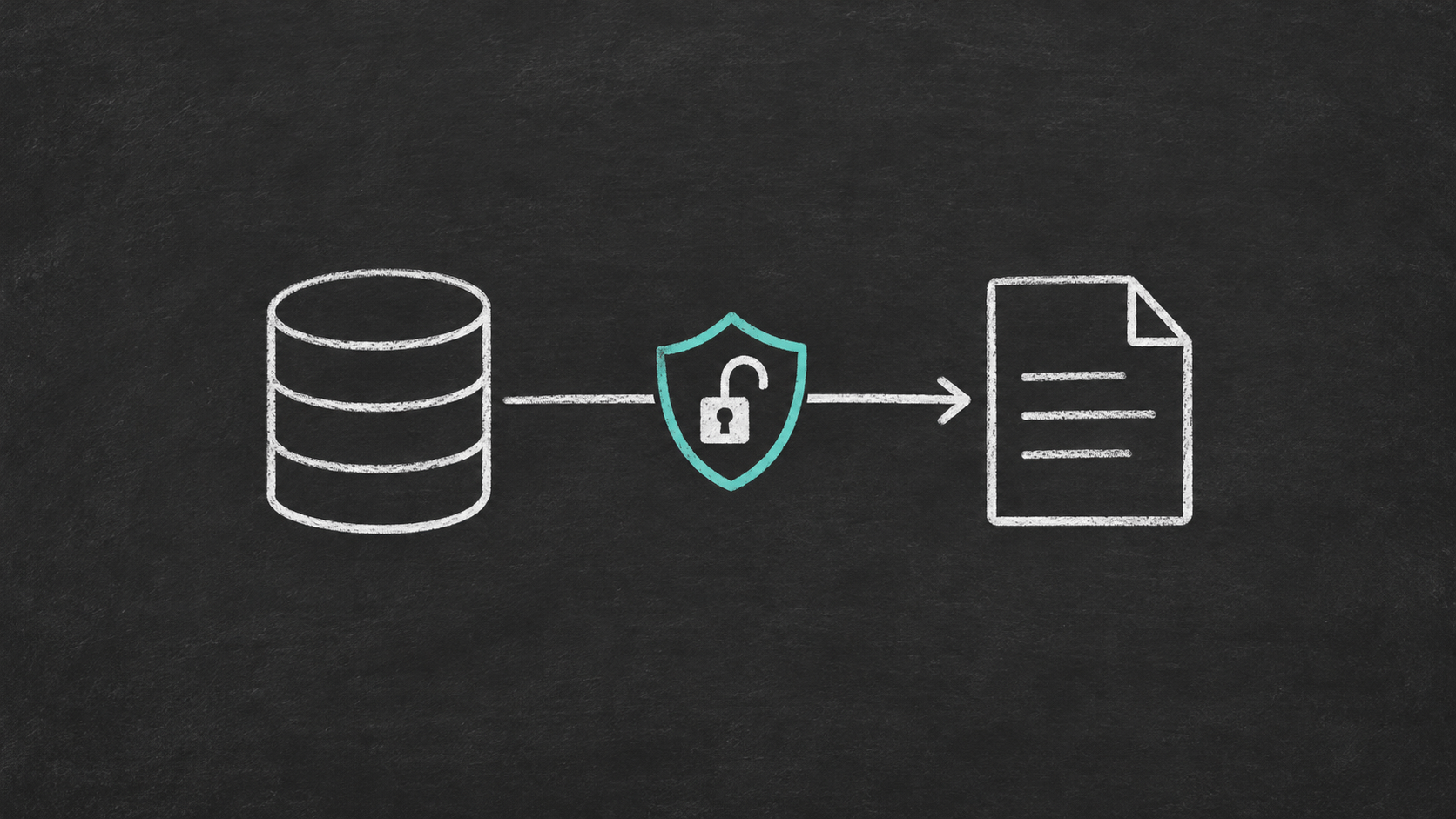
For predictable reporting, move to a pattern that separates operational storage from analytical storage. A typical architecture extracts changes from SharePoint and streams or replicates them into a reporting database where indexing, views and query optimisation are available. This supports reliable dashboards, complex aggregations and scalable joins across sites.
Practical benefits include:
- Consistent performance for reports due to purpose‑built indices and set‑based SQL queries.
- Deterministic refreshes and auditability: change tracking makes extracts repeatable and provable.
- Safer operations: reporting queries run against a separate system, reducing the load on SharePoint and the risk of impacting collaboration workloads.
AxioWorks has published practical guidance on moving SharePoint data into SQL Server for responsive dashboards; see “From SharePoint Lists to Real‑Time Insights: A Practical Architecture for Power BI” for a worked example of this approach. For scenarios requiring reliable access to SharePoint metadata alongside list data, “Unlocking SharePoint Metadata for Reliable Reporting with SQList” explains how capturing metadata improves analytical outcomes. If you need an out‑of‑the‑box replication option that preserves list structure and metadata, SQList is a pragmatic tool to consider: https://www.axioworks.com/sqlist/.
If the next problem after data movement is report access control, How to Apply Row-Level Security to Microsoft Lists Reporting in Power BI explains how to design governed row filters instead of assuming SharePoint permissions will handle analytical security for you.
Choosing the right path
Decide based on data volume, required freshness and operational constraints. For low volume and infrequent reporting, an Excel export or simple flow may be sufficient. For dashboards, regulatory reporting, or scale beyond tens of thousands of items, invest in a replication or ETL path into a proper reporting database. For more on the hidden costs of using SharePoint as a reporting database, see “The Hidden Cost of Using SharePoint as a Reporting Database”.
Conclusion
Workarounds are useful but temporary. Excel exports, Power Automate flows and ad‑hoc scripts can deliver rapid results early on, but they introduce risks as use grows: data freshness issues, throttling, maintenance overhead and governance gaps. A controlled replication or ETL architecture delivers predictable performance and auditability, and supports modern analytics without compromising collaboration. For practical reference architectures and considerations on list scale limits, consult AxioWorks’ related posts on threshold behaviour and architecture best practices.
#sharepoint #reporting #dataintegration #powerplatform #sqlserver #etl