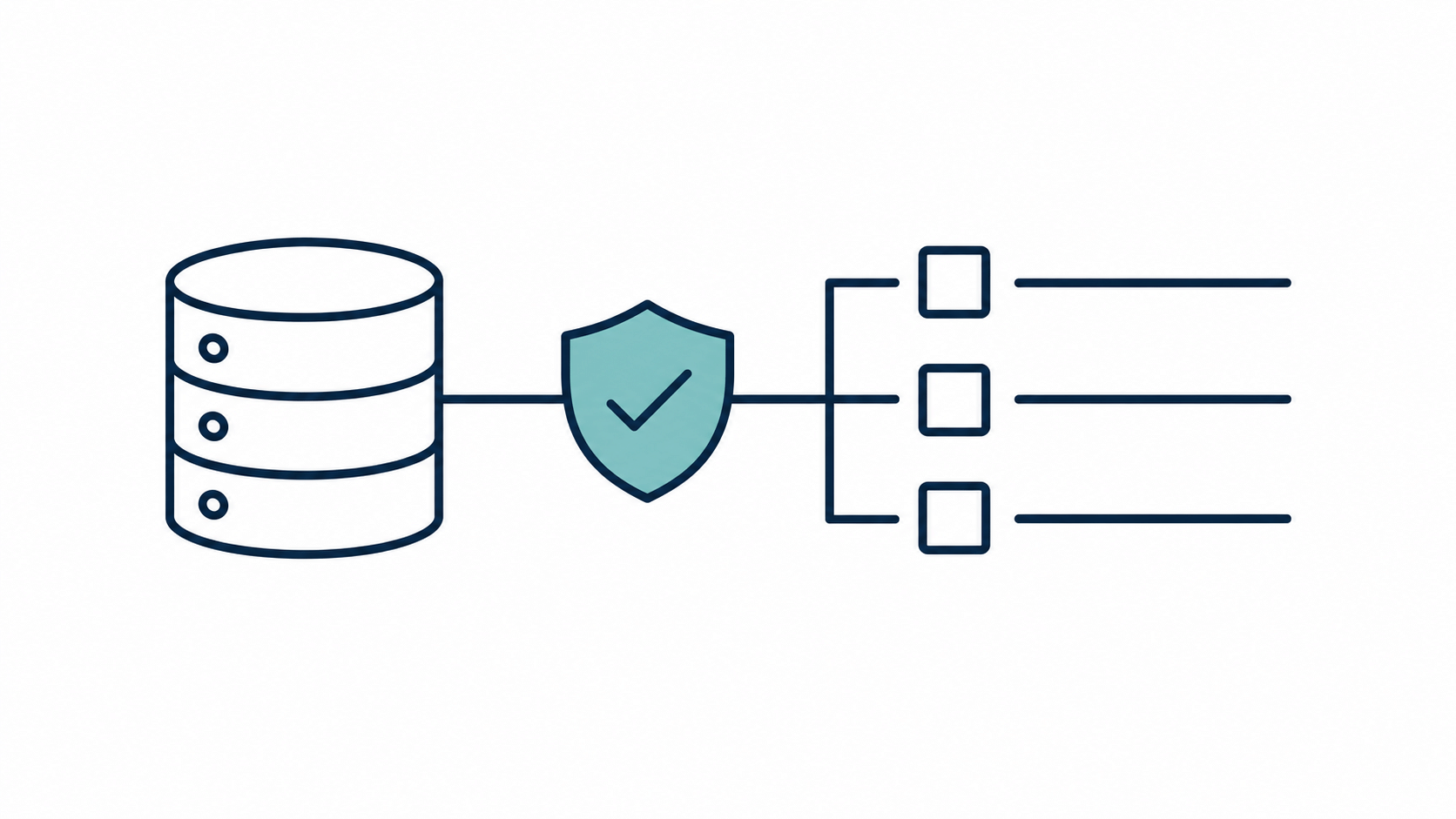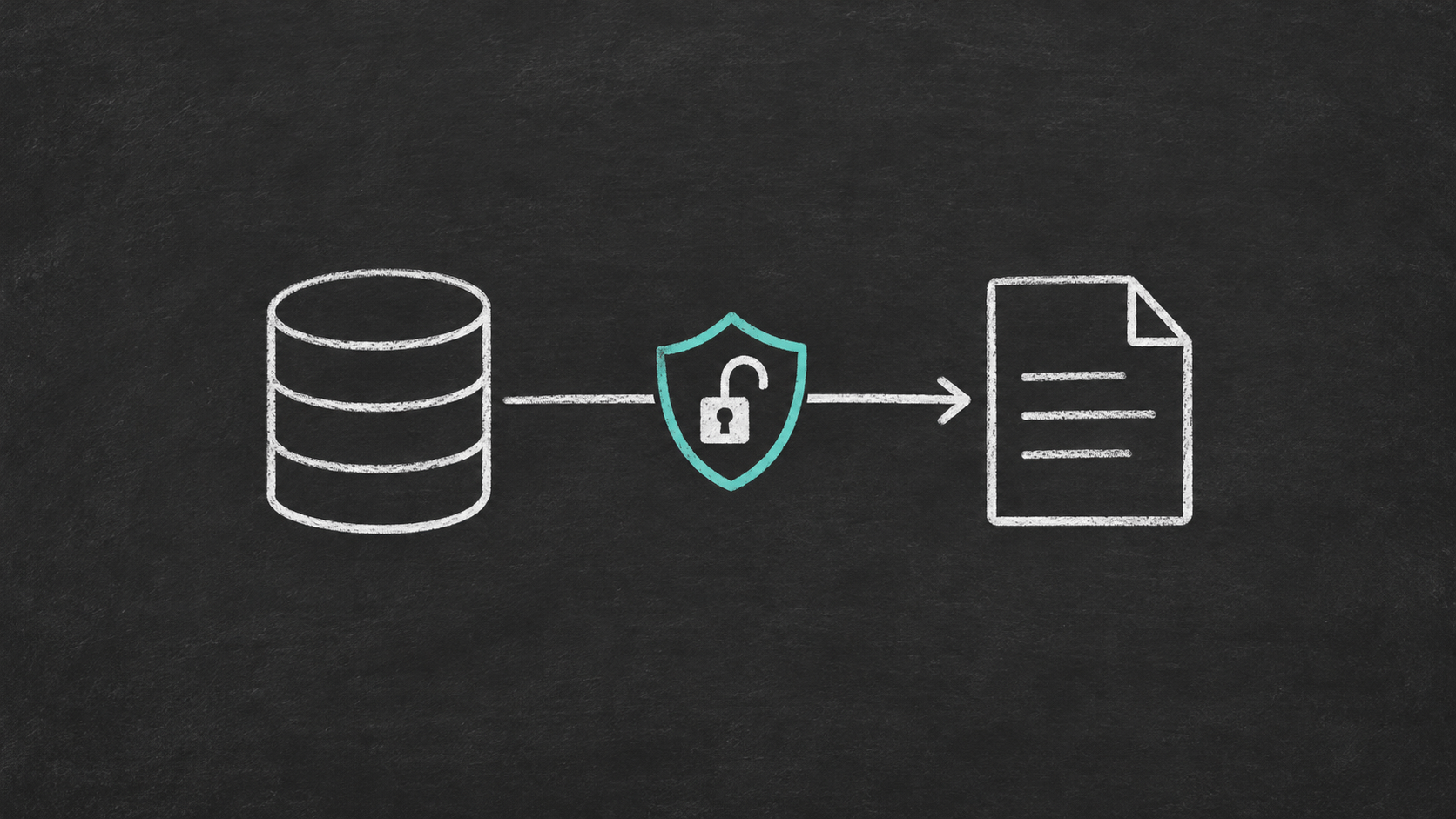
If your SharePoint Power BI report is not updating after refresh, trace one changed item through the source, SQL reporting layer, semantic model and visual. A successful refresh confirms that an operation completed; it does not prove that the operation read the expected source or included the change you are looking for.
This troubleshooting guide is for BI operations engineers supporting SharePoint or Microsoft Lists data synchronised into SQL Server, including deployments using SQList. For a direct list connection, skip the SQL checks. The diagnostic approach is general guidance based on public Microsoft documentation and architectural reasoning, not an AxioWorks-tested incident procedure.
Start with one missing change
Choose an existing item whose update you expect to see. Record its site, list, item ID, expected field value and source modification time. Item IDs are only meaningful within their list, so keep the list and site identity with the ID. Use an approved test record if you need a controlled change; do not edit operational records merely to test a dashboard.
Confirm that the edit was saved in the intended list. Check the actual field value rather than relying on a total, which may remain unchanged after an edit. Compare timestamps in the same time zone, preferably UTC, and distinguish a business event date from the time a record was modified.
Then find the earliest point where that exact change disappears. This turns an ambiguous complaint about a stale report into a bounded investigation.
A short diagnostic map
| Evidence | Investigate next |
|---|---|
| The expected value is absent in SharePoint | Source item, saved edit, site and list identity. |
| SharePoint is current; the replicated SQL row is old | Replication progress, configuration and failures for that list. |
| The SQL row is current; the reporting view omits it | View filters, joins and business rules. |
| The reporting view is current; the imported model is old | Connection target, refresh scope, timing and partitions. |
| The model has the change; the visual does not | Visual refresh, filters, relationships, measures and viewer context. |
Use the table as a sequence of evidence checks, not a list of components to restart. If you need context for the SQL stage, see Using SQL Server as a Reporting Layer for SharePoint Lists.
When the change has not reached SQL Server
Compare the item against the replicated table using the documented mapping in your deployment. Confirm the SQL instance, database and list mapping before investigating latency. A working process aimed at a different database can produce a completely successful but irrelevant run.
Review the replication status and logs available in your installed version. Look for evidence that the affected list was processed, including any failures or incomplete work. A running Windows service is not evidence that every configured list has caught up. Check access, connectivity and configuration where the logs point; avoid assuming every delay is throttling.
SQList provides the SharePoint-to-SQL Server replication stage, allowing an existing SQL Server and reporting stack to remain in use, including appropriate on-premises or hybrid arrangements. That stage and Power BI refresh have separate responsibilities. Refreshing Power BI cannot retrieve a SharePoint change that has not yet arrived in its SQL source. Available diagnostic details depend on your SQList version and configuration; this guide does not assume a particular monitoring endpoint or control table.
When the SQL table is current but the report source is not
Inspect the exact view or query consumed by the model. A row can exist in the replicated table and disappear through an inner join to a missing lookup, an active-record filter, or a date condition. A report can also show the row while retaining an old derived value because a related table has not caught up.
Compare the affected record before and after the relevant transformations. If several lists contribute to one report, check each required input. Do not assume that separate lists represent an identical point in time just because their replication processes are healthy.
Changes to source columns need their own investigation. For that issue, use the companion guidance on SharePoint list schema changes and stable reporting models.
When Power BI reports success but still contains old values
Identify the storage mode of the affected table. Import tables hold a copy that needs data refresh. DirectQuery tables query their configured source when visuals issue queries; they do not bypass delays in the SharePoint-to-SQL stage. Mixed models require you to check the table involved rather than assigning one freshness behaviour to the whole report. Microsoft explains these distinctions in Data refresh in Power BI.
For an Import table, verify the semantic model used by the report, its connection target and any gateway mapping. Check refresh history and the operation’s scope. Compare the model refresh timing with the time the change became available in the reporting source. If the model read SQL before replication completed, a successful refresh can legitimately contain the earlier value.
Microsoft’s August 2026 Power BI update describes more granular refresh controls, including separate schema and data options and table-level operations. Where those controls are available, verify that the affected table’s data was included. Synchronising a schema is not evidence that changed rows were loaded.
With incremental refresh, inspect the date column used for partitioning and the configured refresh window. An edit to an older item may fall outside the periods being refreshed. For example, a record created last year but corrected today can remain in an older partition when partitioning uses its creation date. Do not assume a modification timestamp automatically causes every historical partition to be revisited. Microsoft’s incremental refresh documentation explains the refresh window and change-detection settings.
Investigate the applicable partition before expanding the refresh window or starting a full reload. Choose a recovery method supported by your model and capacity, with its resource cost understood.
When the model is current but the page is stale
A browser page that was already open may still display an earlier result. Refresh the report visuals after confirming that the underlying data is current. Refreshing visuals for an Import table queries the imported model; it does not itself import new source rows.
If the value still differs, compare the report page, slicers, bookmarks, relationships and measure logic. Check the intended viewer’s access context without disabling security as a shortcut. A filtered-out row or a measure that excludes a status is a modelling issue, not necessarily a replication delay.
Make freshness visible without giving false reassurance
A useful operational record distinguishes the last successful source check, confirmed replication progress for each required list, model data refresh completion and the time a known change was observed in the report. Record only timestamps your monitoring can substantiate; label unavailable evidence as unknown.
The maximum item modification time is not a universal freshness certificate. A quiet list can be fully current with an old maximum timestamp. Conversely, one recent item can make that timestamp look healthy while other changes are missing. Row counts can remain equal after updates, or after an insertion and deletion cancel each other numerically.
Define a freshness target around the business decision the report supports. Treat a stale status as actionable only when the evidence shows the agreed target has been missed; do not promise that an arbitrary polling interval guarantees it.
Close the incident with evidence
After correcting the identified stage, verify the original changed item at every downstream stage and in the intended report context. Confirm that the next normal replication and refresh cycle succeeds too. Record the cause, recovery action, affected interval and evidence used to close the incident.
The most useful handover is specific: which change was missing, where it stopped, and which check will detect that failure next time. A green refresh icon can support that account, but it cannot replace it.
For a practical checklist to detect and investigate freshness problems earlier, see our guide to monitoring SharePoint to SQL Server synchronisation after go-live.
SharePoint’s new Copilot analytics offer another way for site owners to review page, news and document performance. See our guide to the October 2026 Copilot in SharePoint update.