Microsoft announced Hero Links in its 20 October 2026 OneDrive update. The feature provides one link per file or folder by default, with permissions that can change while the URL stays the same. Microsoft says the feature is rolling out.
For SharePoint and OneDrive owners, this is a useful moment to review how file access is granted, checked, and removed. A familiar link can make collaboration easier, but the important question for a sensitive document is still who can open it and what they can do with it.
What changes with OneDrive Hero Links?
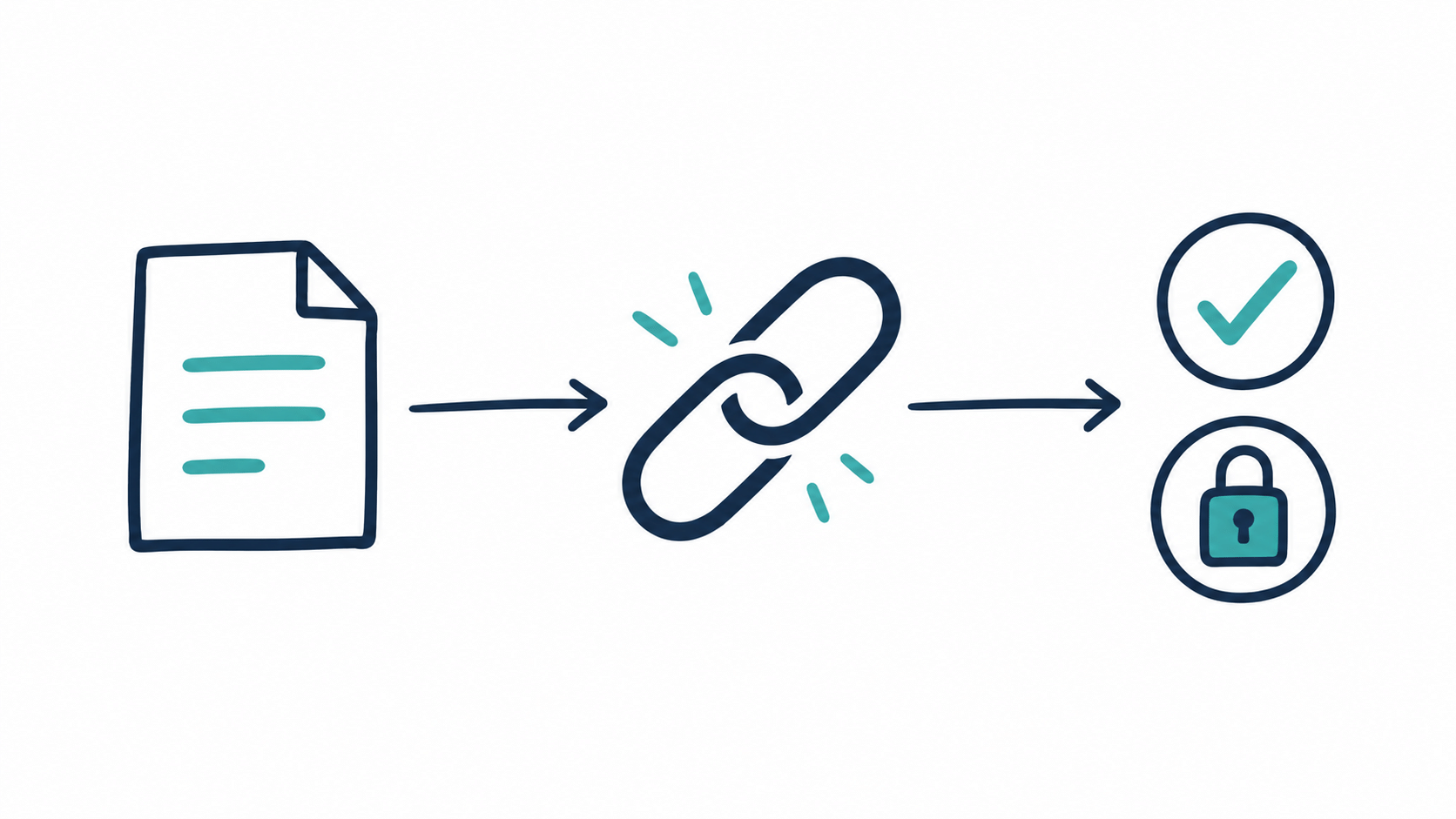
Microsoft describes a sharing model in which owners update access on the same URL instead of creating a new link for each change. Its announcement also says the browser URL can be used for sharing with the applicable permissions.
For a project team, the practical benefit is a consistent reference in messages and project notes. Our recommendation is to make access review part of the file’s ownership process: a stable address should be accompanied by a clear record of its intended audience.
Check who already has access
Begin with a representative file and open Manage access. Microsoft’s guide to checking file access explains how to inspect people, groups, and links, including access that comes through the site.
Do this before testing a permission change. If a colleague belongs to a group with access to the site, removing one individual sharing grant may not remove their ability to open the file. Record the relevant access routes so that a successful test means what you think it means.
Site ownership matters too. Microsoft’s SharePoint permissions guidance recommends managing group-connected team-site permissions through the associated Microsoft 365 group or Teams team. Private and shared channel-site permissions are managed through Teams. Include the appropriate owner in any access review.
Review external-sharing policy before widening the audience
Microsoft documents both organisation-level and site-level external-sharing settings. A site can be more restrictive than the organisation, and OneDrive’s external-sharing setting cannot be more permissive than SharePoint’s. See the administrator guidance for SharePoint and OneDrive sharing settings.
Our suggested review is straightforward: identify which project sites need external collaboration, who approves a guest’s access, and who removes that access when the work ends. Keep those decisions visible to file owners, particularly when a link is pasted into a long-lived email thread or project record.
Run a small access test before wider adoption
Use a test document without sensitive information. Define the expected result first, then check the same saved URL with representative accounts:
- An intended reader: can they open the document with the expected level of access?
- An intended editor: can they make a change, and does the reader remain unable to edit?
- A person outside the audience: are they denied access or directed into the expected access-request process?
- A recipient whose access has been removed: does the saved URL now give the expected result? Check their group and site access as well.
Record the accounts, permissions, result, and date. Repeat the relevant checks when project membership or sharing policy changes. This is an operational recommendation, rather than a claim about a new automated control in Hero Links.
Check reporting access separately
If a shared document points to a Power BI report, include the report’s access model in the review. Microsoft’s Power BI row-level security guidance describes RLS as a semantic-model control; it applies to workspace Viewers and does not apply to Admin, Member, or Contributor roles.
Our guide to row-level security for Microsoft Lists reporting in Power BI explains how to design and test that reporting layer. For sites also adopting AI features, see the permission and ownership checks in our Copilot in SharePoint October update guide for site owners.
Confirm rollout and lifecycle controls
Check the experience available in your tenant before updating user instructions. Microsoft’s October announcement distinguishes the current Hero Links rollout from expiring Hero Link access controls, which it describes as coming soon. Do not plan a process around those new expiration controls until their availability and configuration are confirmed.
Assign an owner to the review, document the intended audience, and give users a clear route for reporting unexpected access. Those steps provide a practical foundation for adopting the new sharing experience.
Sources and rollout wording checked on 26 October 2026. Recommendations in the access-testing sections are AxioWorks operational guidance.