A Power BI refresh can fail on a SharePoint list even when the list contains relatively few items. If the query retrieves many lookup-related fields, its shape can be the deciding factor. For teams maintaining operational lists and reporting on them, that creates two questions: how do you restore the direct connection, and when is a SQL Server reporting layer a better fit?
Check the connector and its join limit
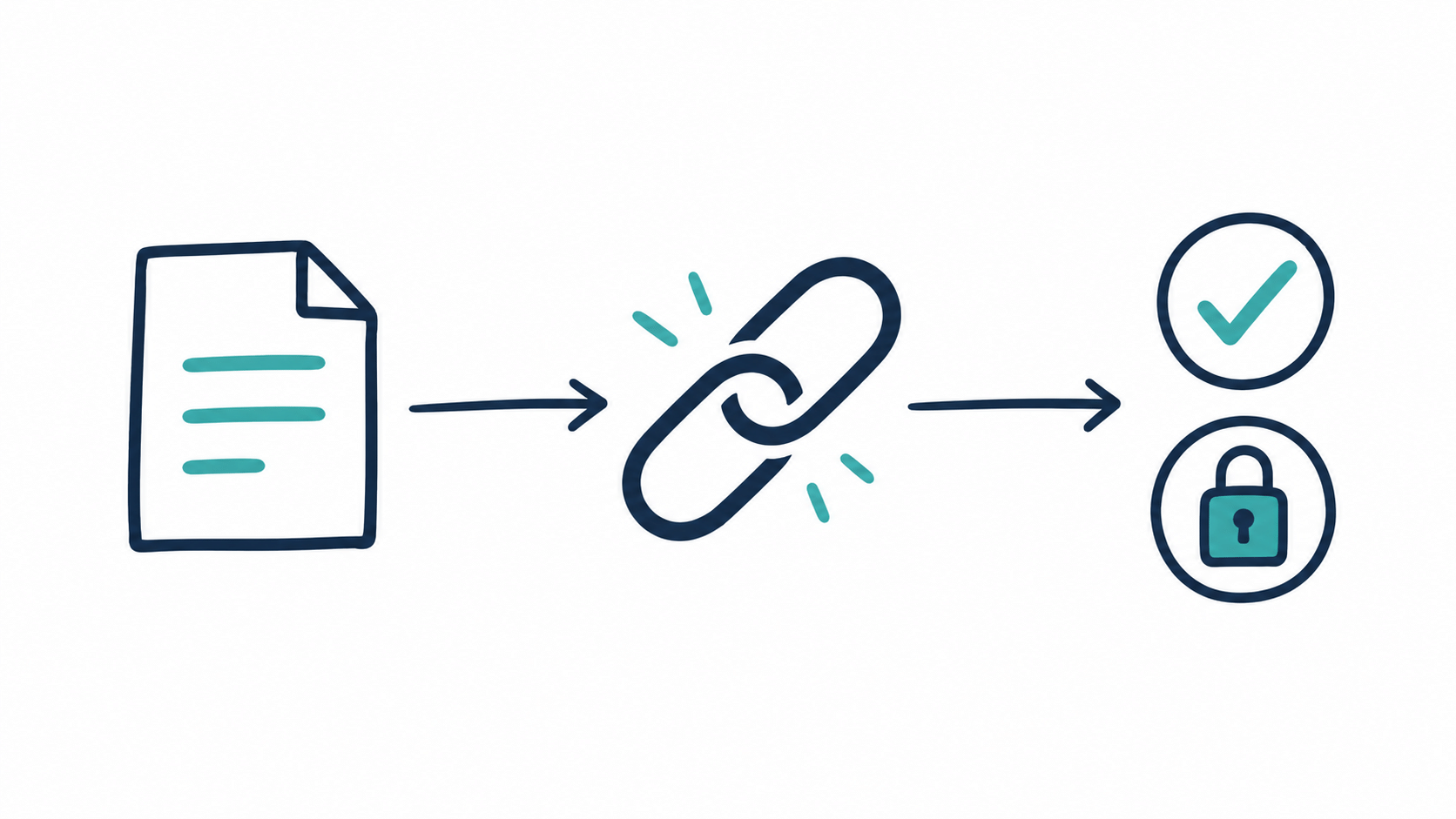
Microsoft documents a maximum of 12 join operations per query for the SharePoint Online list connector’s 2.0 implementation. The connector troubleshooting guidance describes a workaround using a default view containing fewer than 12 lookup columns.
The relevant measure is the joins required by the request. Counting ordinary text or number columns alone does not establish whether this limit is involved. First confirm that the failing query actually uses the SharePoint Online list connector’s 2.0 implementation, then examine the fields it requests.
Consider an approvals list that has gradually acquired more relationships as its business process grows. The form can remain useful while the reporting query becomes harder to retrieve. In that situation, investigating the source request is more useful than repeatedly changing report visuals or retrying the same refresh.
Try a focused direct-connection repair first
Keep a copy of the existing Power Query definition and record the failure details before making changes. Then use a controlled test:
- Confirm the source. Record the site, list, connection identity, and connector implementation. Check that you are investigating the query that failed.
- Identify the report’s required fields. Separate the fields needed for measures, relationships, and filters from fields retained only for convenience.
- Review the default view. With the list owner, evaluate the smaller default-view workaround in Microsoft’s connector guidance. Consider its effect on colleagues who use that view before changing it.
- Check the source options. Confirm that the connector requests the intended view and fields. A removed-columns step late in the transformation does not, by itself, prove that the original request avoided those fields.
- Validate the result. Check required columns, representative item IDs, lookup values, and totals, then run the normal service refresh as well as the desktop test.
Microsoft’s SharePoint.Tables reference documents the Implementation and ViewMode options. For implementation 2.0, the view modes are All and Default. With Default, changes to the default view’s columns propagate through the connector. Treat that dependency as part of the reporting design and agree who can change it.
When does a narrower view stop being enough?
A small report with a few necessary relationships may be well served by a corrected direct connection. The case for a separate reporting layer grows when the business genuinely needs the fields that keep being removed, several reports repeat the same transformations, or reporting must combine SharePoint data with other systems.
Before changing architecture, write down the requirement. For example: “We need approvals, project attributes, and customer classifications in one model, with the same join rules reused by three reports.” That is a more useful evaluation target than a general request to make refresh faster.
Where SQList fits
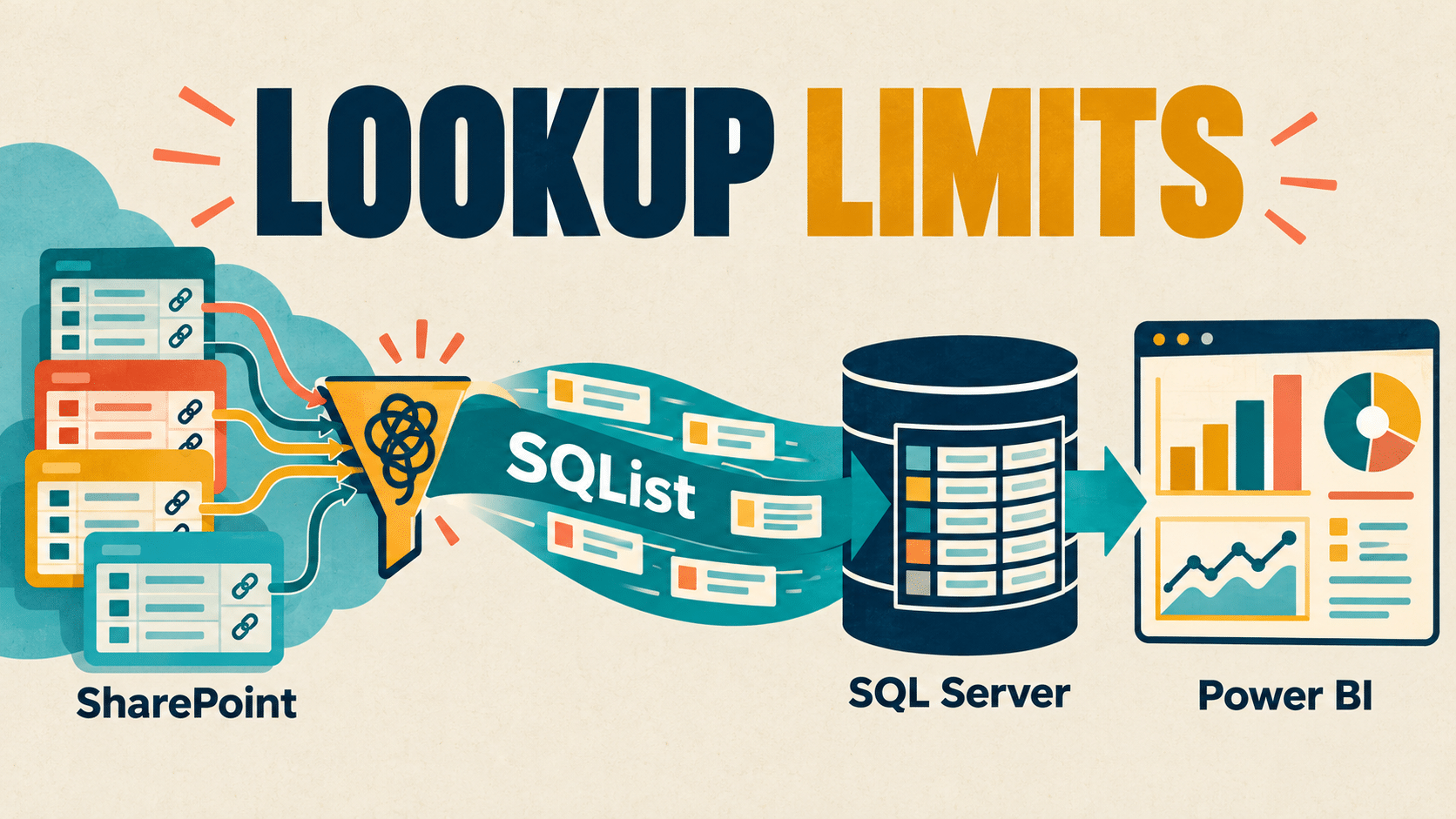
AxioWorks SQList continuously replicates SharePoint lists and libraries into SQL Server tables. It supports complex SharePoint column types and generates a normalised SQL schema, including related structures for multi-lookup fields. Reports can then consume SQL tables or curated SQL views.
The resulting data path is SharePoint → SQList → SQL Server → Power BI. The Power BI reporting query runs against SQL Server, so the SharePoint Online list connector’s particular 12-join constraint is no longer a constraint on that reporting query. Replication still needs appropriate access and healthy processing of the source lists; evaluate that stage too.
The practical benefit is a place to define reusable joins and reporting rules while the team continues working in SharePoint. Our guide to reporting on SharePoint lookups, people, and multi-value fields in SQL Server explains the modelling work involved.
Evaluate it with the list that is causing the problem
A useful SQList evaluation should exercise the difficult relationships, rather than an unusually simple demonstration list:
- Replicate representative inputs: include the affected list and the related data needed for the report.
- Inspect the SQL output: check item identities, lookup relationships, missing values, and multi-value records against the source.
- Build one reporting view: reproduce an existing business measure and confirm that joins do not duplicate totals.
- Measure normal operation: record initial-load time, the arrival of later changes, and Power BI refresh duration separately.
- Check access and ownership: agree who can query the SQL data, who maintains reporting rules, and who investigates failures.
Once a refresh completes, verify the actual changed records as well. Our companion article on tracing missing SharePoint changes through a Power BI reporting path covers that separate freshness check.
If your reporting needs more relationships and reuse than a narrowed SharePoint view can comfortably provide, request a free SQList evaluation and test it against that requirement in your own environment. You will have a concrete basis for choosing between maintaining the direct connection and introducing a SQL Server reporting layer.
This is practical troubleshooting and architecture guidance based on current Microsoft connector documentation and AxioWorks product information, checked on 26 October 2026. The connector limit is an existing documented behaviour, rather than a newly announced change.