Power BI incremental refresh can reduce repeated loading of historical SharePoint data, but the refresh policy needs a source that can filter efficiently and a plan for records that change later. For teams already using SQL Server, replicating SharePoint lists into a SQL reporting layer provides a practical place to prepare and inspect that source.
This guide explains where AxioWorks SQList fits, what to configure in Power BI, and which checks to complete before relying on an incremental policy.
Separate replication from semantic-model refresh
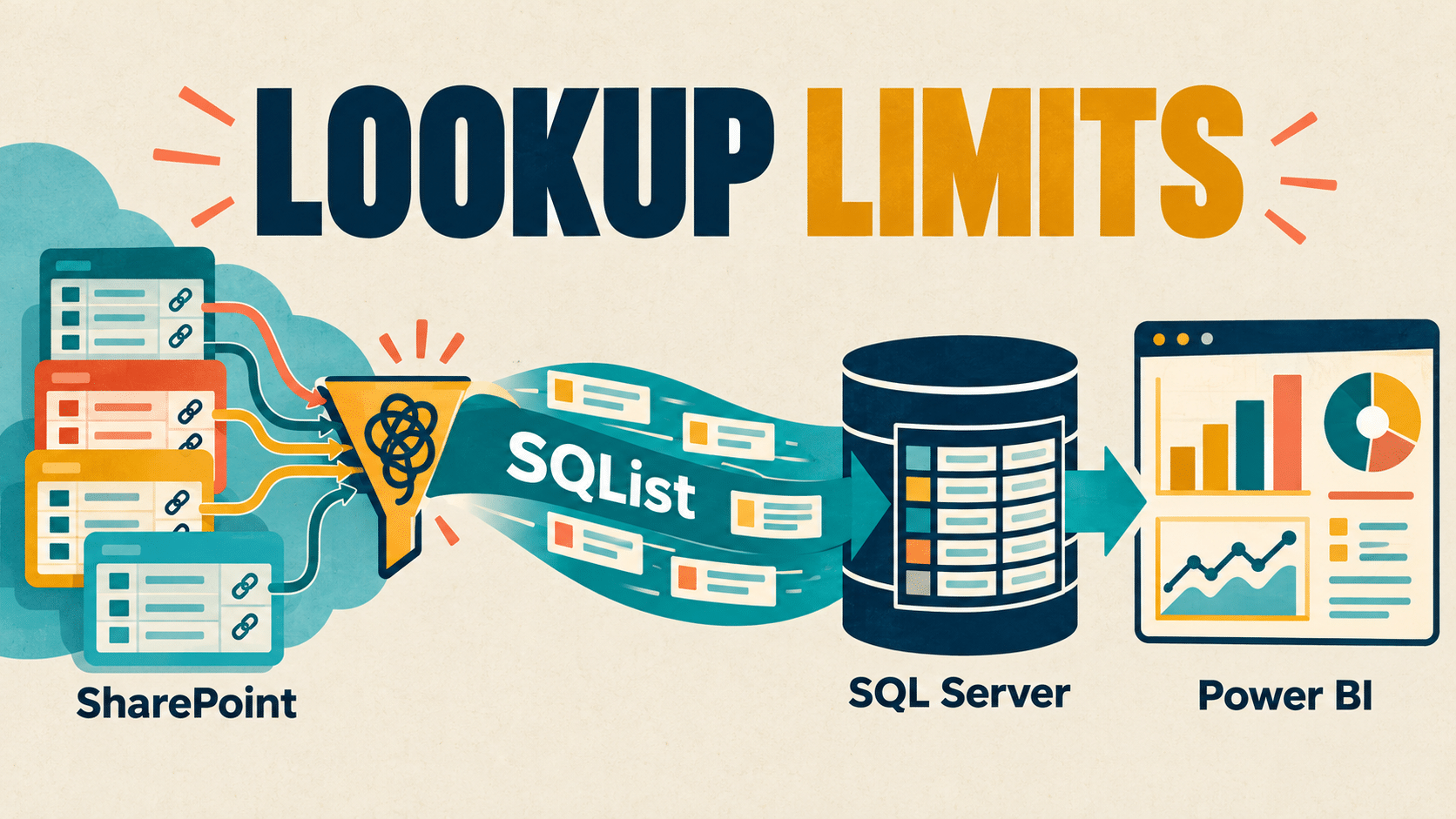
SQList continuously replicates SharePoint list and library data into SQL Server tables. Power BI can consume those tables or reporting views built over them. That gives the two stages distinct responsibilities:
- SharePoint to SQL Server: make the required source data available in SQL through SQList replication.
- SQL Server to Power BI: load the appropriate data into the semantic model according to its refresh policy.
A healthy replication process does not configure Power BI partitions or choose which historical periods to revisit. Record the freshness requirement for the whole path so that both stages are included in the operating plan.
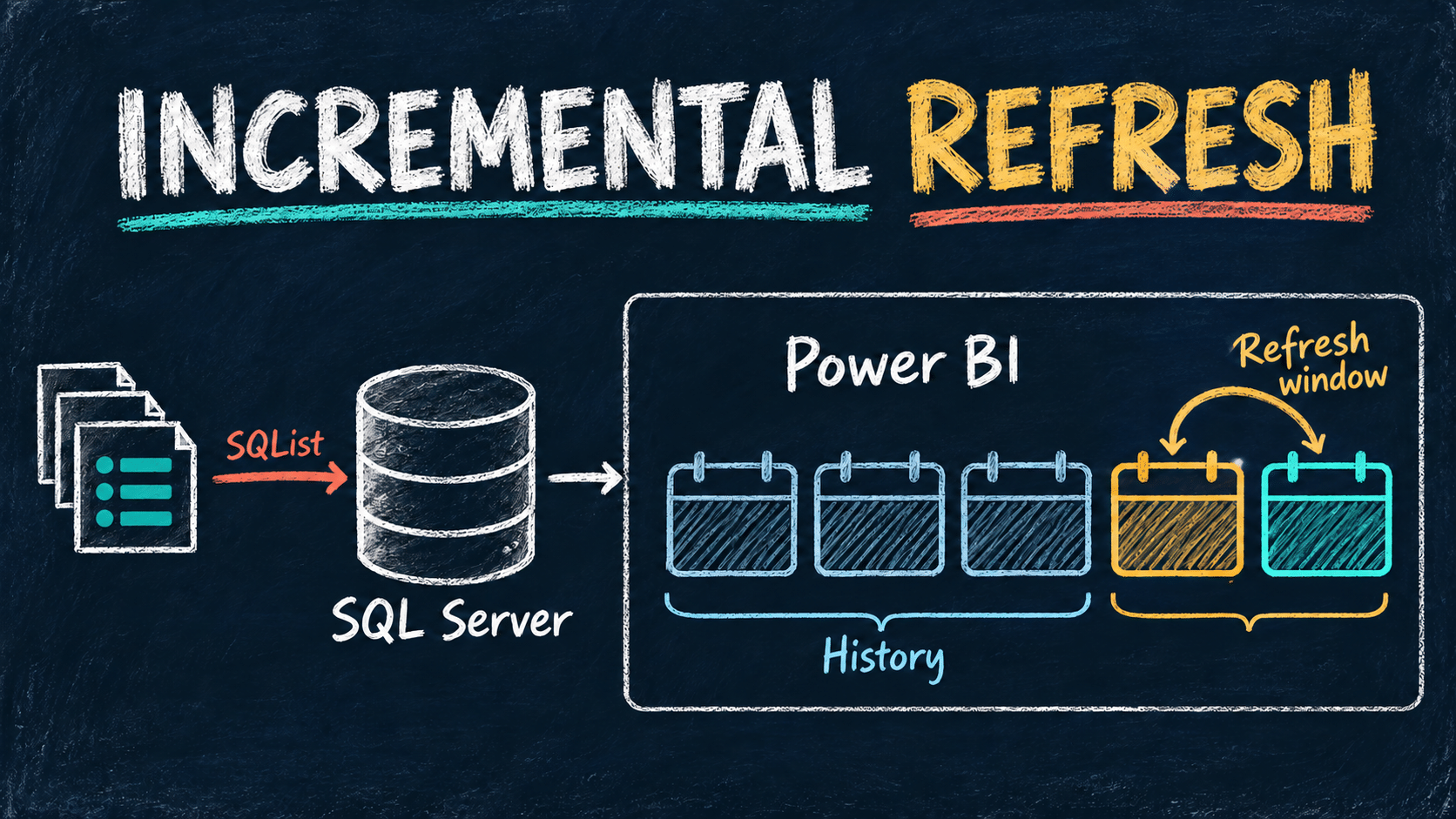
Microsoft’s incremental refresh overview describes a rolling-window model: recent import partitions are refreshed while older periods become historical. The first service refresh also loads the configured history, so plan separately for the initial load and later refreshes.
Give Power BI a SQL source it can filter
Start with a reporting table or view that exposes the business keys, measures, and date fields the model needs. Keep its meaning clear: one row per request, invoice, case, or other agreed business entity. Check that joins to related SharePoint lists do not multiply rows and inflate totals.
Microsoft’s query-folding guidance recommends pushing suitable transformations into the relational source, including through database views. Folding allows Power Query operations to be translated into a source query. Inspect the actual query behaviour: selecting SQL Server as a connector does not prove every later transformation will fold.
For incremental refresh, verify that the date-range filters reach SQL Server. Microsoft’s overview recommends diagnostics or source-side tracing when needed. If the model retrieves the whole table and filters locally, a small visible result can conceal a much larger retrieval.
Our recommendation is to keep the first evaluation simple: use a representative SQL view, introduce the date filter, and inspect its behaviour before adding more transformations. Measure the source work as well as the elapsed refresh time.
Choose the date column and refresh window deliberately
Microsoft’s configuration guide specifies the case-sensitive Date/Time parameters RangeStart and RangeEnd. Use an inclusive boundary at one end and an exclusive boundary at the other, such as Date >= RangeStart and Date < RangeEnd, to avoid overlapping partition boundaries.
Choose the partitioning date by considering the business record’s lifecycle. An event date, creation date, and modification timestamp answer different questions. Document what the chosen field means, whether it can change, and how timestamps are interpreted throughout the path.
Then decide how long data should remain in the model and which periods need routine refresh. Base the refresh window on how far back users can correct records, rather than choosing the smallest window solely because it runs quickly.
Plan for older corrections and deleted records
Consider a case created six months ago whose status is corrected today. If the model is partitioned by creation date and routinely refreshes only the latest month, the correction belongs to a period outside that window. Successful SharePoint-to-SQL replication does not establish that Power BI has revisited that period.
Agree how that situation will be handled: a wider routine window, an appropriate historical-partition refresh supported by the deployment, or another tested recovery procedure. Include a record whose partitioning date changes in the evaluation, and check for missing or duplicated business keys afterwards.
Microsoft also documents that Detect data changes does not detect physically deleted rows. Its change-detection setting uses a separate date/time field from the partitioning column. A deletion policy therefore needs its own validation. If the SQL source no longer contains a record, test whether the model removes it for both current and historical periods.
For an existing report with an apparently missing update, follow our guide to tracing a changed SharePoint item through SQL Server and Power BI.
Evaluate the complete path with representative records
Use approved test data and record the expected result before changing a production reporting policy. Our suggested acceptance checks are:
- Initial load: confirm the required SharePoint data reaches SQL and that the first model refresh includes the intended history.
- New and recently updated records: verify the SQL values, model values, and final business measures.
- Historical corrections: exercise an edit outside the normal refresh window and prove the agreed recovery method.
- Date boundaries and changing dates: test records at the range boundary and confirm business-key uniqueness.
- Deletions: verify the expected treatment in current and historical periods.
- Performance and ownership: record SQL retrieval behaviour, refresh duration, and who investigates each stage when data is late.
Keep ongoing evidence for replication and model refresh separately. Our SharePoint-to-SQL Server monitoring checklist covers the operational checks around the replicated source.
Where SQList makes the evaluation practical
SQList provides the SharePoint-to-SQL Server replication stage while users continue working in SharePoint. The SQL output gives your reporting team a relational source on which to build views, inspect queries, and define reusable reporting rules. The Power BI policy remains a modelling decision that your team configures and validates.
If repeated SharePoint data retrieval is becoming difficult to maintain and your team wants a SQL reporting source, request a free SQList evaluation. Use one real reporting requirement and the acceptance checks above to assess the complete data path in your environment.
Microsoft documentation and AxioWorks product information checked on 27 October 2026. This article covers existing functionality and practical design guidance; the acceptance checklist is an AxioWorks recommendation.