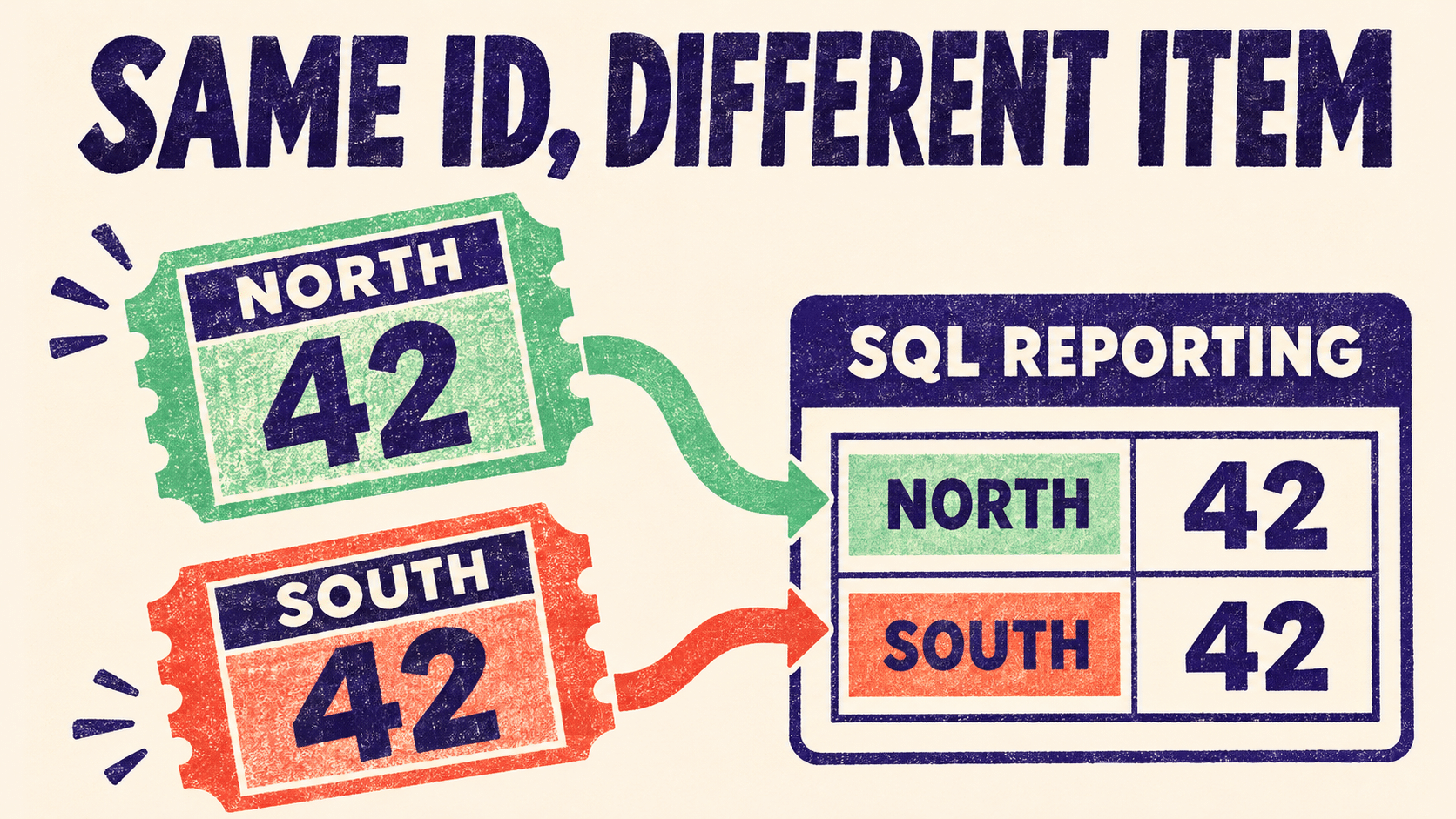
Two SharePoint project lists can each contain item 42. When you bring both lists into SQL Server, those rows should remain separate. Joining or deduplicating them on ID alone can silently attach the wrong project to a record or leave one item out of a Power BI total.
The fix is to keep the source list identity alongside the item ID. This guide shows how to carry that identity from SharePoint into a consolidated reporting model, and where AxioWorks SQList fits.
Give each item its source context
Microsoft’s SharePoint identifier reference describes the list item ID as an integer within its containing list. It documents separate identifiers for the list, site collection and web. These are useful concepts when designing the reporting model; the reference does not describe the columns SQList generates.
| Source list | SharePoint item ID | Example title |
|---|---|---|
| North project requests | 42 | Replace pump |
| South project requests | 42 | Inspect valve |
In this example, a report grouped by item ID alone sees one group. A report grouped by source list and item ID sees two requests. If a related table also contains item 42, its reference needs enough information to identify which list the item belongs to.
Keep a stable source-list identifier in your reporting layer. You can maintain a small source register that maps each replicated table to the tenant, site and list it represents, using verified identifiers where available. Keep display names and URLs as useful labels or navigation fields. Avoid making a friendly list name the only identifier: two sites can use the same name, and a list can be renamed.
Append the rows, then apply reporting rules
Start with two lists that serve the same business process. Write down what one output row represents and map the source fields to a shared set of reporting columns. Check that dates, statuses and owners mean the same thing before combining their values. If one team’s “closed” includes cancelled work and another team’s does not, agree a mapping before publishing a common total.
Use a reporting view to append the lists and retain the source identity on every row. In SQL Server, UNION ALL is a suitable append operation when the columns have compatible types and you intend to preserve all source rows. Resolve any genuine duplicate source records explicitly. Removing repeated item numbers would discard legitimate records from different lists.
Apply the same principle to lookups. If each project site has its own customer list, customer item 7 in one list may have nothing to do with customer item 7 elsewhere. Join using the lookup’s target-list context and its target item ID. If the business wants a shared customer dimension, use a separately verified customer identifier or mapping. For more on shaping these fields, see our guide to SharePoint lookups and other complex fields in SQL Server.
Give Power BI a single relationship key where needed
In SQL, the combination of a source-list key and item ID can identify a row at the agreed level of detail. Where Power BI needs a one-to-many relationship, Microsoft’s star schema guidance explains that the one side needs a single unique column. A persistent SQL mapping from the source pair to a reporting key is one option when several models or dependent tables need the same key.
Carry the same mapped key to the related rows. An index generated independently in each query is not a shared mapping. Also distinguish source identity from business identity: if a migration copies an item into a new list, decide explicitly whether the new source record represents the same business case.
Where SQList fits
SQList can continuously replicate selected SharePoint lists from multiple sites into a SQL Server database. Your reporting team can inspect the actual replicated tables, add the source register and mappings in its own reporting layer, and expose a view that preserves each record’s origin. SQList supplies the replicated data; the cross-list business definitions, keys and Power BI relationships are reporting design decisions.
Our guide to tracing a missing SharePoint change shows how to follow one record through the resulting data path.
Validate a collision before rolling out
- Pick two representative lists with overlapping item numbers. Confirm that each source row remains identifiable in SQL.
- Compare output counts by source list against the intended scope. Inspect any repeated source-list and item-ID pairs at the agreed row level.
- Check a lookup that uses the same numeric ID in both sites. Verify that each item resolves to the correct target, and investigate unmatched references separately.
- Change one approved test item and check that the corresponding report row changes while the other record with the same number stays unchanged.
If combining several SharePoint lists is a recurring reporting task, request a free SQList evaluation and use two real lists to prove the mapping before expanding to more sites.